So, when I’m not rocking out with Plexamp on Desktop, I tend to use Audacious. It’s an open-source player which is quite customizable.
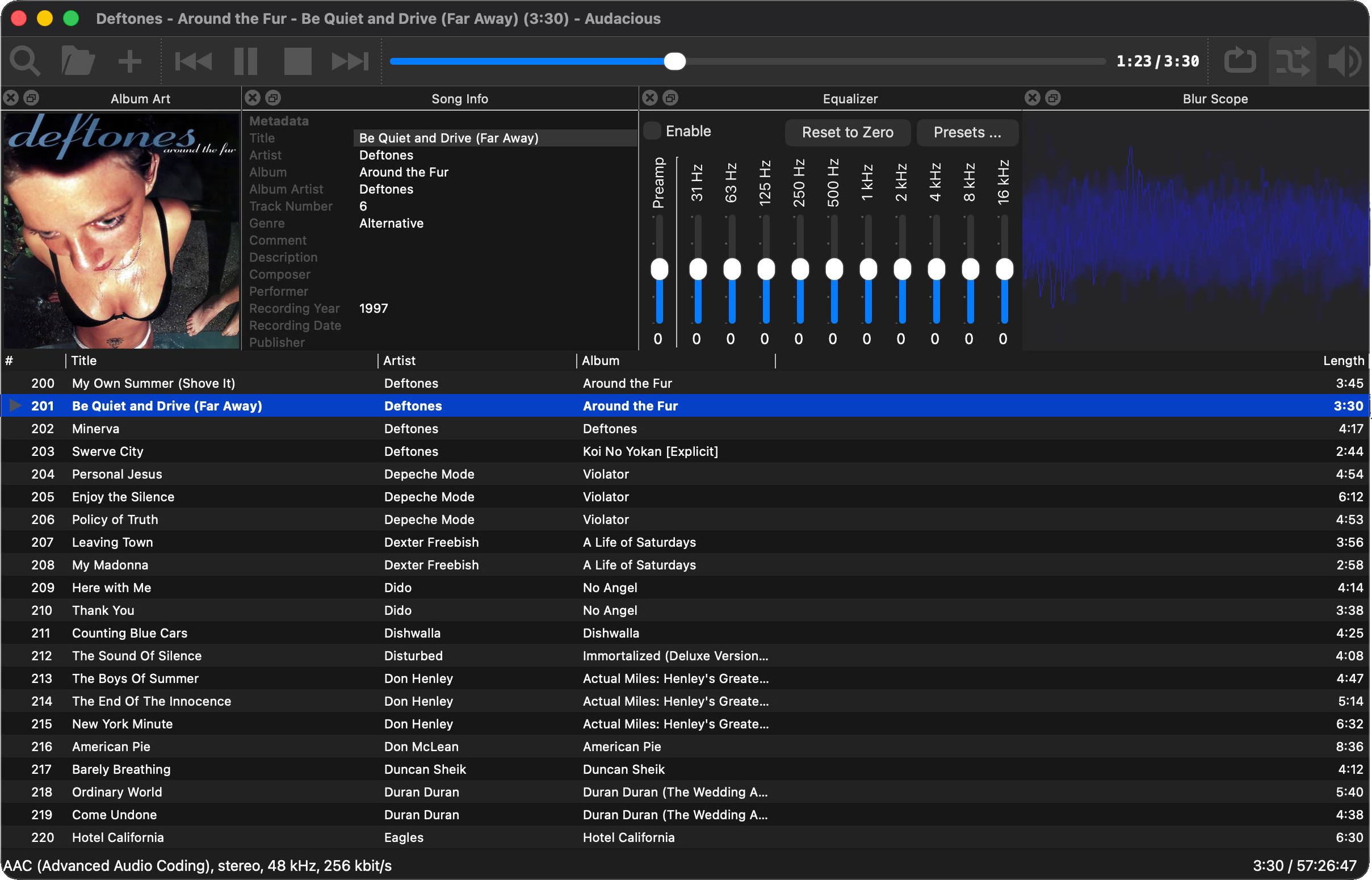
It’s a pretty isolated player, though–no sync capability (at least on macOS) to Android or iOS devices. It’s purely a nice desktop app.
You can install it on macOS via brew
brew install audaciousOne thing that’s missing, though, is a nice and neat app package for it. Sure, you can launch it via Terminal but sometimes it’s nice to just click to launch.
So, of course, I whipped up a script to create one 🙂 The contents of this app directory are up on github but it would appear that there’s no way to include this with a brew installation.
#!/bin/zsh
set -e

APP_NAME="Audacious"
APP_DIR="/Applications/${APP_NAME}.app"
SVG_PATH="/opt/homebrew/Cellar/audacious/4.6.1_1/share/icons/hicolor/scalable/apps/audacious.svg"
BINARY_PATH="/opt/homebrew/bin/audacious"

# 1. Ensure librsvg (rsvg-convert) is installed for proper SVG rendering
if ! command -v rsvg-convert &> /dev/null; then
    echo "--> 'rsvg-convert' not found. Installing 'librsvg' via Homebrew..."
    brew install librsvg
fi

TMP_DIR=$(mktemp -d)
trap 'rm -rf "$TMP_DIR"' EXIT

echo "--> Creating Application Bundle structure at ${APP_DIR}..."
mkdir -p "${APP_DIR}/Contents/MacOS"
mkdir -p "${APP_DIR}/Contents/Resources"

echo "--> Creating executable launcher..."
cat << EOF > "${APP_DIR}/Contents/MacOS/launcher"
#!/bin/zsh
nohup "${BINARY_PATH}" >/dev/null 2>&1 &
EOF
chmod +x "${APP_DIR}/Contents/MacOS/launcher"

echo "--> Writing Info.plist..."
cat << EOF > "${APP_DIR}/Contents/Info.plist"
<?xml version="1.0" encoding="UTF-8"?>
<!DOCTYPE plist PUBLIC "-//Apple//DTD PLIST 1.0//EN" "http://www.apple.com/DTDs/PropertyList-1.0.dtd">
<plist version="1.0">
<dict>
    <key>CFBundleExecutable</key>
    <string>launcher</string>
    <key>CFBundleIconFile</key>
    <string>appicon.icns</string>
    <key>CFBundleIdentifier</key>
    <string>org.audacious-media-player.macwrapper</string>
    <key>CFBundleName</key>
    <string>${APP_NAME}</string>
    <key>CFBundlePackageType</key>
    <string>APPL</string>
    <key>CFBundleShortVersionString</key>
    <string>1.0</string>
</dict>
</plist>
EOF

echo "--> Rendering SVG to high-res transparent PNG using rsvg-convert..."
PNG_FILE="${TMP_DIR}/clean_icon.png"
rsvg-convert -w 1024 -h 1024 "$SVG_PATH" -o "$PNG_FILE"

echo "--> Building macOS iconset..."
ICONSET_DIR="${TMP_DIR}/app.iconset"
mkdir -p "$ICONSET_DIR"

sips -z 16 16     "$PNG_FILE" --out "${ICONSET_DIR}/icon_16x16.png" >/dev/null 2>&1
sips -z 32 32     "$PNG_FILE" --out "${ICONSET_DIR}/icon_16x16@2x.png" >/dev/null 2>&1
sips -z 32 32     "$PNG_FILE" --out "${ICONSET_DIR}/icon_32x32.png" >/dev/null 2>&1
sips -z 64 64     "$PNG_FILE" --out "${ICONSET_DIR}/icon_32x32@2x.png" >/dev/null 2>&1
sips -z 128 128   "$PNG_FILE" --out "${ICONSET_DIR}/icon_128x128.png" >/dev/null 2>&1
sips -z 256 256   "$PNG_FILE" --out "${ICONSET_DIR}/icon_128x128@2x.png" >/dev/null 2>&1
sips -z 256 256   "$PNG_FILE" --out "${ICONSET_DIR}/icon_256x256.png" >/dev/null 2>&1
sips -z 512 512   "$PNG_FILE" --out "${ICONSET_DIR}/icon_256x256@2x.png" >/dev/null 2>&1
sips -z 512 512   "$PNG_FILE" --out "${ICONSET_DIR}/icon_512x512.png" >/dev/null 2>&1
sips -z 1024 1024 "$PNG_FILE" --out "${ICONSET_DIR}/icon_512x512@2x.png" >/dev/null 2>&1

echo "--> Compiling .icns file..."
iconutil -c icns "$ICONSET_DIR" -o "${APP_DIR}/Contents/Resources/appicon.icns"

echo "--> Refreshing Finder & Dock icon cache..."
touch "$APP_DIR"
killall Dock Finder

echo "Done! Audacious.app is updated with a sharp icon in /Applications."
Audacious may not have any connectivity to any mobile devices, but it sure does manage playlists quite well–you can import/export m3u, xspf and others. I do think I like the latter the most, because all of the metadata that are inherent that format means you know precise runtimes for playlists without it having to scan large lists and calculate that value.
Sometimes, you just want to listen to music in a desktop environment. This definitely foots that bill well.